
User Manual for the AI Writer Module
9 minutos de lectura

AI Writer is an artificial intelligence assistant integrated into Dolibarr that helps you process text contextually.
- It allows you to summarize, translate, improve writing, change the tone, or apply custom transformations instantly.
- Compatible with major AI platforms: Mistral, DeepSeek, Anthropic, and OpenAI.
- Additionally, it remembers your preferences to maintain an agile and continuous workflow. ⚡
Index
If you are not an administrator user in your Dolibarr, you can skip to point 3 of this manual.
- 💬 Floating bubble on all pages
- ✏️ Text selection mode
- ⚙️ Text transformation options
- Installation process
- Configuration and integration with AI providers
- 💎 Benefits of the AI Writer module
💬 Floating bubble on all pages
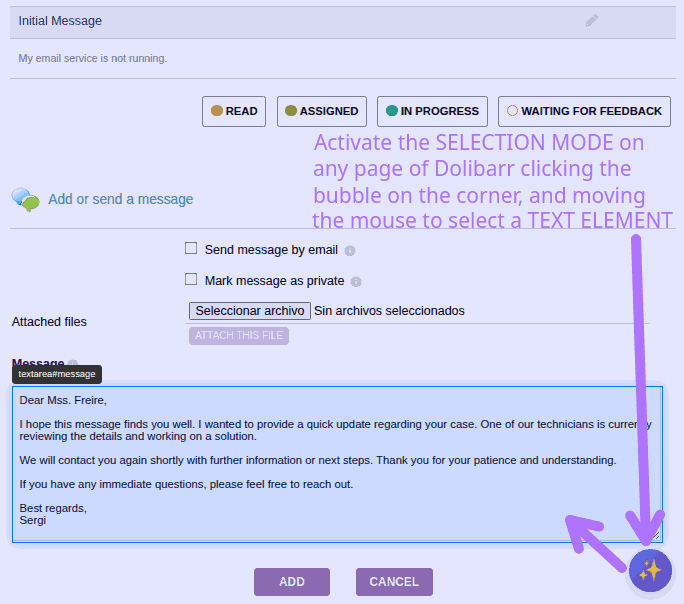
Once the module is installed and configured (see the Installation and Configuration section at the end of this guide), a clickable bubble will appear in the bottom right corner of all Dolibarr pages.
This bubble is the gateway to the AI assistant's functions.
✏️ Text selection mode
When you click the bubble, the page will enter selection mode, applying a faint color to the background.
As you move the cursor, editable elements containing text will be highlighted, including:
- Single-line text boxes (forms).
- Multi-line text areas (textarea in forms).
- Content within rich editors like CKEditor (e.g., in notes or emails).
- Visible texts on screen: titles, paragraphs, list items, etc.
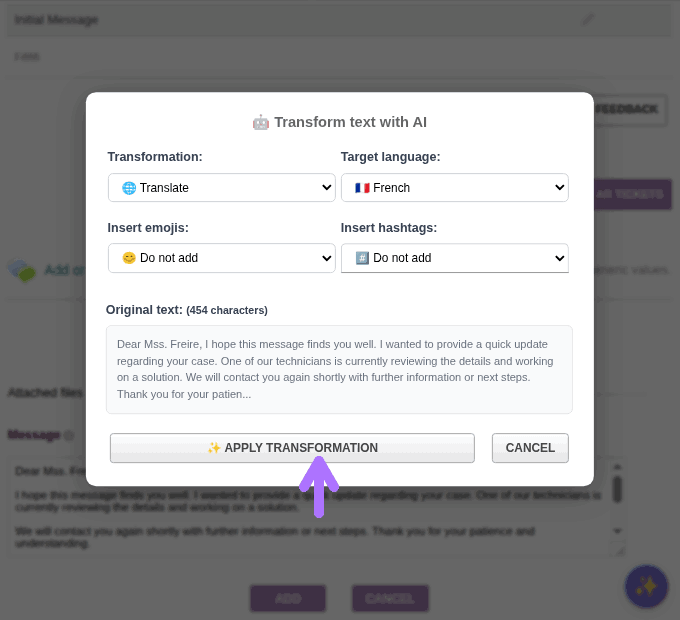
👉 Clicking on one of these elements will open the transformation dialog box for the selected text.
In fact, there are 4 text selection modes on the page:
- SINGLE-CLICK SELECTION, to select a single text container element (paragraph, textarea, editor, table cell, etc.)
- DRAG-AND-DROP SELECTION, to select multiple elements on the page (for example, several rows of a table).
- CONTAINER SELECTION (with SHIFT+CLICK), to select an entire table, section, or complete list of items.
- EMPTY SELECTION (by clicking on an empty area of the page), to be able to manually enter the text to process (!!).
DRAG-AND-DROP SELECTION
- If after clicking for example on a non-empty cell in a table and dragging up or down, we can select multiple rows of a table, though not necessarily all of them. Upon releasing the mouse button, the dialog box to configure the transformation will open.
- The same can be used to choose a few items from a bulleted list, instead of just one.
CONTAINER SELECTION
However, if we want to select an entire table, or an entire bulleted list, or an entire section of the page, then we do this:
- place the mouse cursor inside that "zone"
- press the SHIFT key on the keyboard
- move the mouse sideways or up or down so that the container of that element is highlighted
- if we move outside that container, we can highlight the next container, even the entire page
- when
⚠️ Note: this selector captures all the HTML contained in the selected zone, and that sometimes includes quite a bit of CSS or even javascript... which will also be sent by the module to the LLM to be processed. The prompt already includes the instruction to "not touch" (or "ignore") CSS and javascript and only translate/transform the "visible text". But I have noticed that when selecting too many elements from the page, the LLM gets confused, takes longer, and sometimes doesn't respond. So consider this selection mode as something "experimental" for now.
EMPTY SELECTION for FREE EDITING
This selection mode is interesting:
- move the mouse until it is positioned over an "empty text zone"
- this will cause no element on the page to be "highlighted"
- then click with the mouse
- and the dialog box to specify the transformation we want will open
- but... now the "preview" box for the selected text no longer appears, and in its place we have a multi-line text box where we must write (or paste) the text we want to edit.
I often use this selection mode while working with other apps that are not Dolibarr and I need a quick text editor/translator. And as you know, AI Writer is a fast assistant to use.
⚙️ Text transformation options
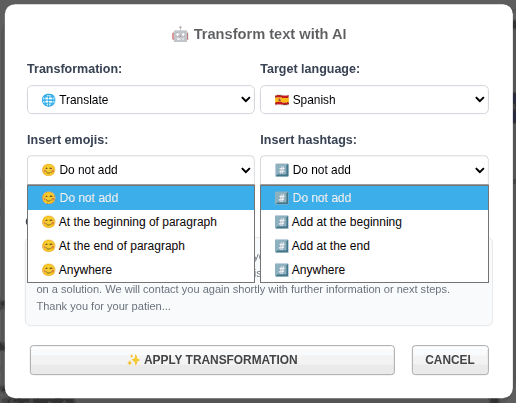
- The dialog box offers multiple text enhancement and formatting options.
- You can select a predefined transformation or write a custom instruction.
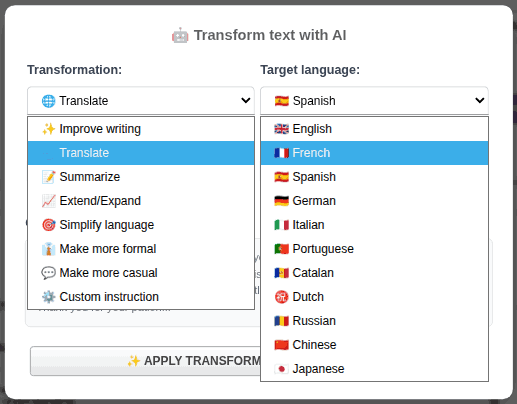
Predefined transformation types
- ✨ Improve writing — corrects grammar and style.
- 🌍 Translate to another language — select desired language and tone.
- ✂️ Summarize — creates brief and clear versions.
- 📈 Extend or expand — develops ideas or adds more context.
- 🤓 Simplify technical language — useful for complex texts or non-specialized audiences.
- 👔 Make more formal — ideal for reports or executive emails.
- 💬 Make more casual — for informal messages or social media.
- ⚙️ Custom instruction — freely combine any adjustments (see next section).
Available predefined languages
- The module includes direct translation to: English, French, Spanish, German, Italian, Portuguese, Catalan, Dutch, Russian, Chinese, and Japanese.
- 📌 If you need another language, select the Custom instruction option and indicate it manually.
Additional options
- Emojis: automatically inserts them at the beginning or end of each paragraph.
Perfect for social media, messaging, or modern emails. - Hashtags: generates tags (#) at the beginning, end, or interspersed in the text.
Very useful for posts on LinkedIn, X, or Instagram.
Custom transformation
- The "Custom instruction" transformation unleashes the full potential of AI.
- It allows you to write any natural prompt, combining actions or rules according to your needs.
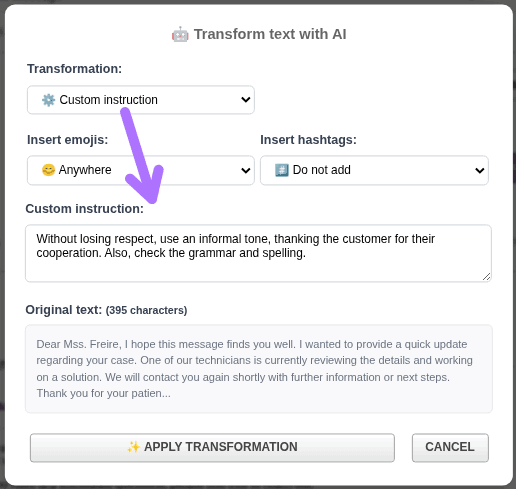
Usage examples:
- "Summarize in a single paragraph, and in Hungarian."
- "Correct grammatically, simplify technical terms, and add an apology for the delay."
- "Exclude non-technical items from the list, keep only financial ones, and draft in basic English."
This option is ideal for advanced writers or specialized tasks where every word matters.
Installation process
First, as usual when installing any Dolibarr module:
- Go to the Configuration section
- Go to Modules
- Go to the Install external module tab, and there you upload the module ZIP or its update
- Return to the Available modules tab
- Filter by Origin: "External - IMASDEWEB"
- Activate the module
Configuration and integration with AI providers
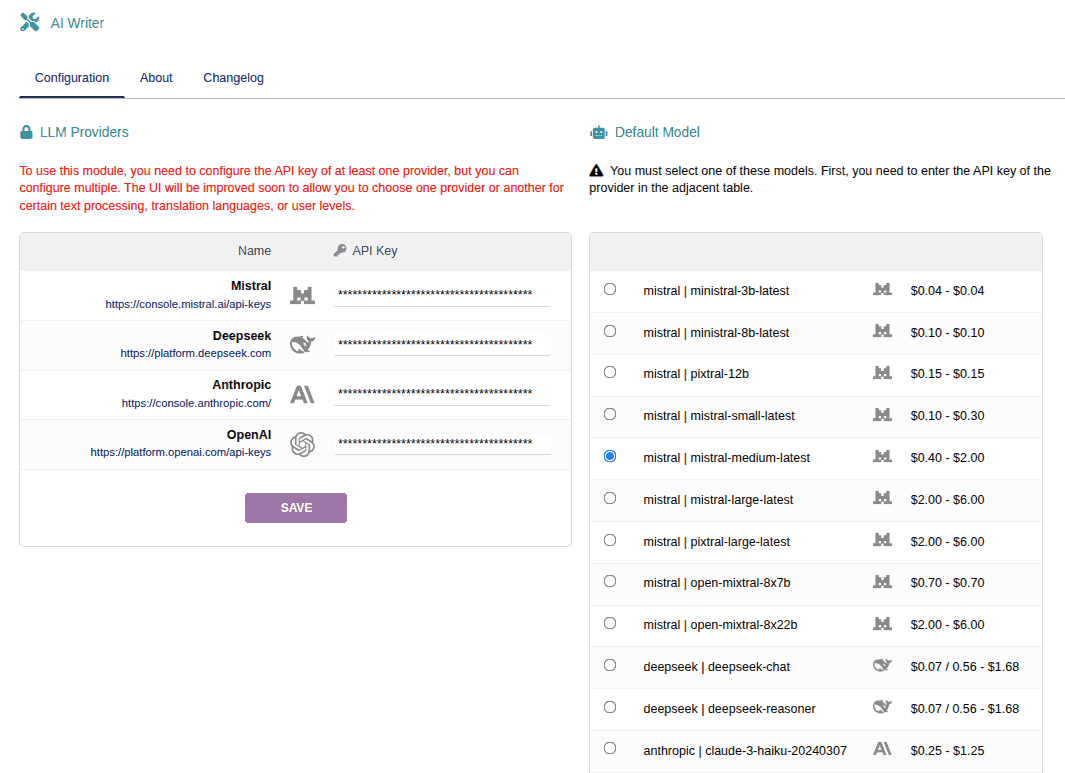
- Enter the "API key" for at least one of the providers
- After saving changes, you must select the LLM model from that provider you want to use by default.
Note:
- You must obtain the API key from the provider's platform; it is usually pay-per-use, typically you add credit to your account with them (starting with $5 USD is enough)
- Sometimes when adding the provider's key in the module configuration, its models are not activated. In this case, simply refresh the page
- In the future, it is planned to add the possibility to choose different models and/or LLM providers for different tasks, because some types of transformation are quite simple to process and any model/provider can perform them at a very minimal cost, but some transformation processes require using a more expensive model to achieve healthier results. That is, sometimes we need a "mediocre" translation for ourselves, but other times we need it to be excellent (to publish or send to a client). Therefore, being able to choose the model/provider to use in each case, savings can easily be 4-10x !!
💎 Benefits of the AI Writer module
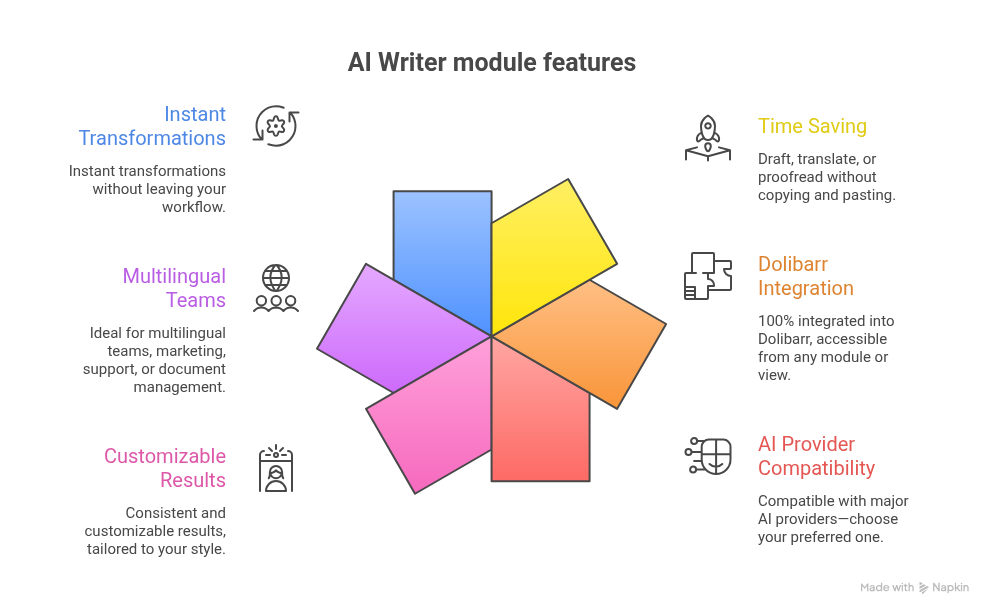
| 🚀 Save time writing, translating, or correcting without copying and pasting. 🧩 100% integrated into Dolibarr, accessible from any module or view. 🤖 Compatible with major AI providers, choose your preferred one. ✨ Consistent and customizable results, tailored to your style. 🌐 Ideal for multilingual teams, marketing, support, or document management. 🔄 Instant transformations, without leaving the workflow. |
Añada su comentario: