
NotePlus Module User Guide
10 minutos de lectura
This module enhances Dolibarr’s native notes functionality by allowing unlimited, highly secure notes to be added to nearly any ERP element. It features AES-256 encryption, personal or shared keys, PBKDF2 password management, and multi-company compatibility.
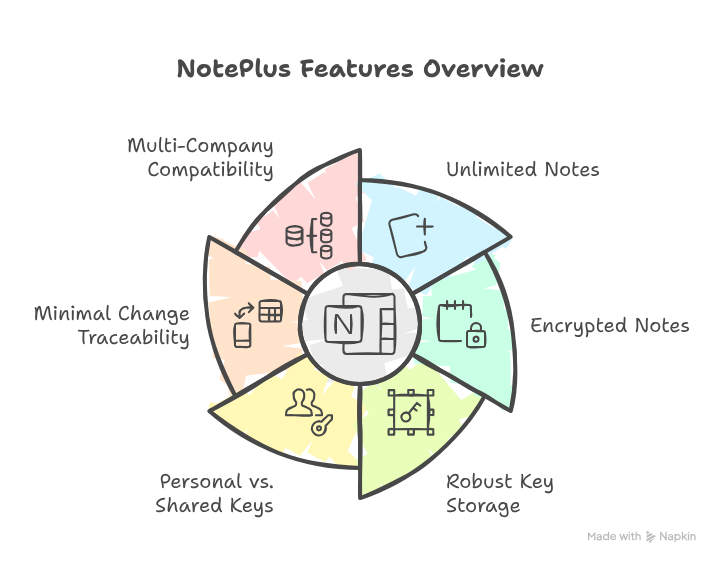
Unlimited Notes for Every Element
-
Add an unlimited number of notes to each element.
-
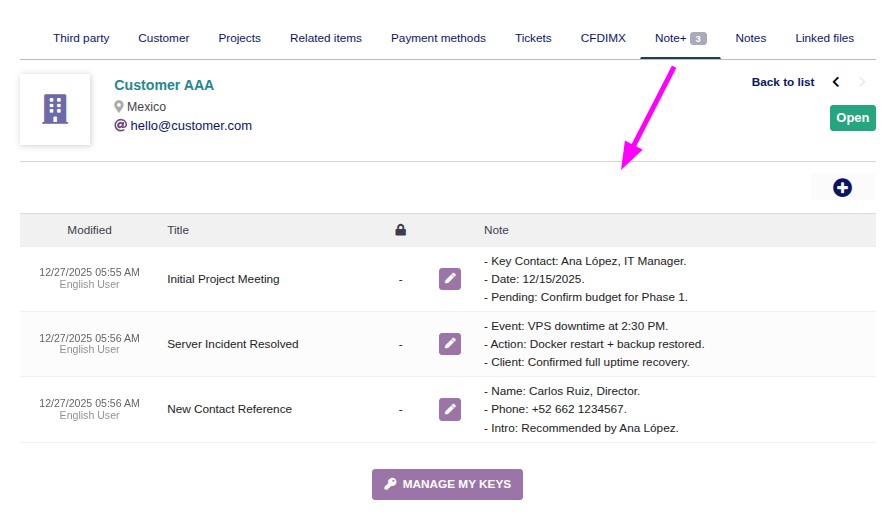
Each note includes a title and content.
-
The system logs the date and user of the last modification:
Elements Supporting NotePlus Notes
- The "Note+" tab will appear in the following Dolibarr elements:
Products, services, customers, suppliers, contacts, members, users, projects, contracts, quotes, customer orders, supplier orders, customer invoices, supplier invoices, calendar events, Bills of Materials (BOM), manufacturing orders, workstations, and tickets.
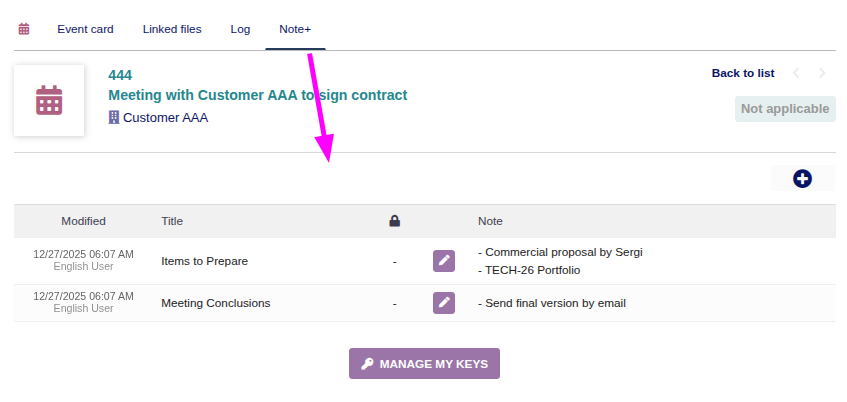
- Some of these elements (e.g., calendar events) do not have Dolibarr’s native "Private Note" or "Public Note" options:
Use of Markdown Format
In unencrypted notes, it will be very useful for you to use "simple Markdown formatting" to make your notes much more readable and able to include elements such as tables, links, images, numbered lists, bold text, etc.
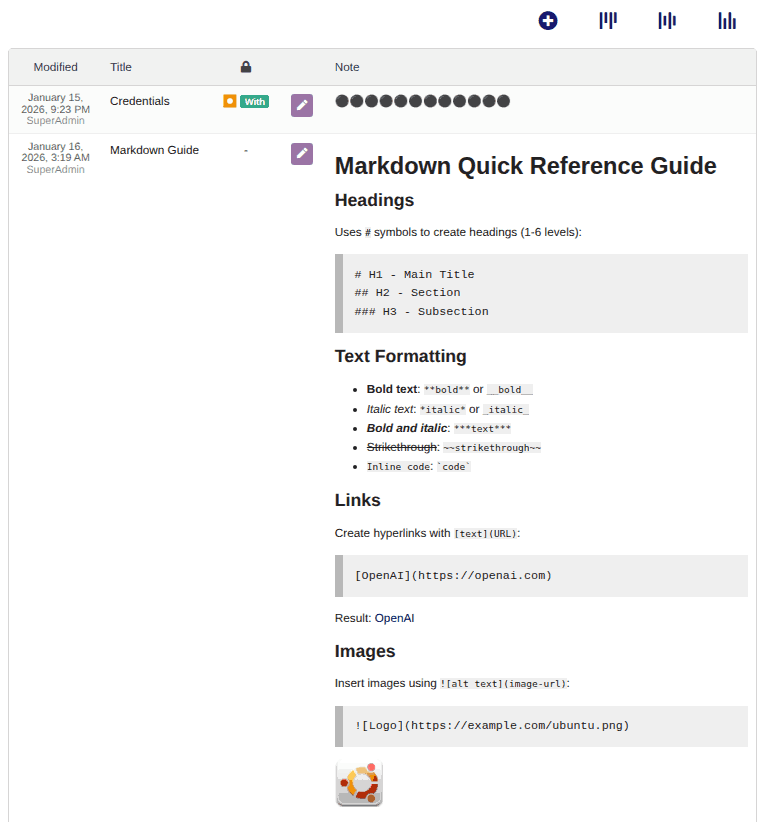
At the end of this article there is a QUICK MARKDOWN GUIDE.
Optional Note Encryption
- You can optionally encrypt note content.
- The module generates a random 256-bit key.
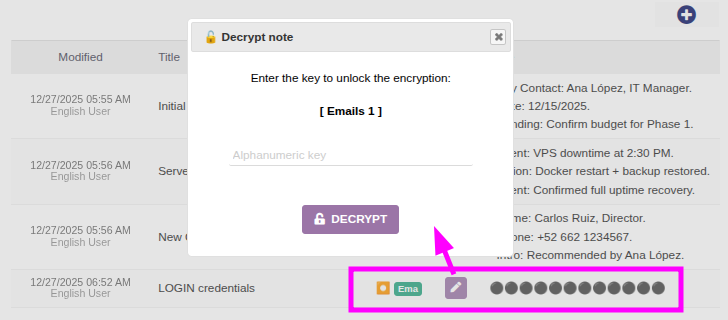
- The system prompts the user for an "unlock key".
- This key is not stored in the database.
- If lost or forgotten, encrypted data cannot be recovered.
- Adding encrypted notes is simple:
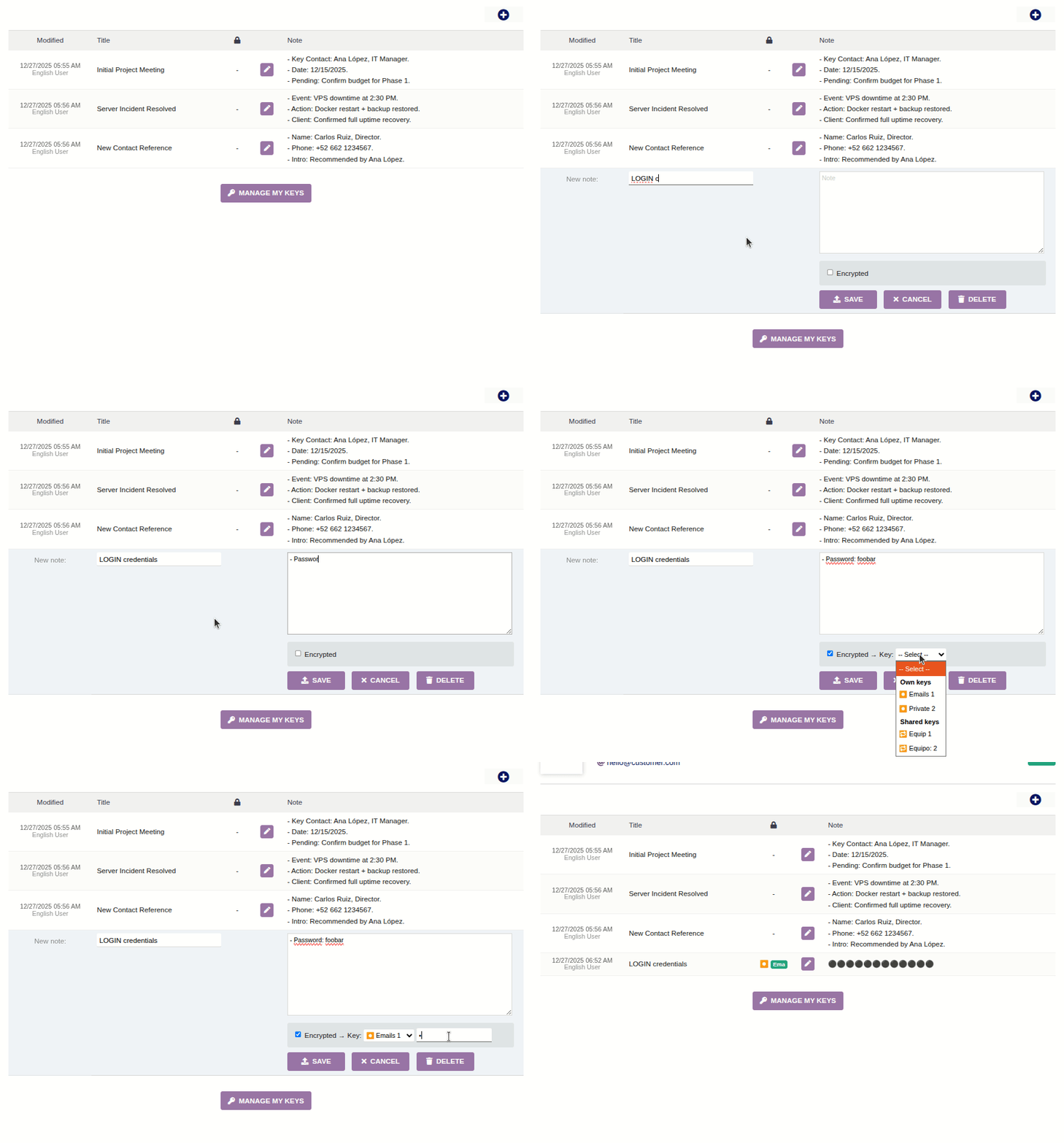
- To access encrypted note content, only the unlock key is required:
Personal Keys vs. Shared Keys
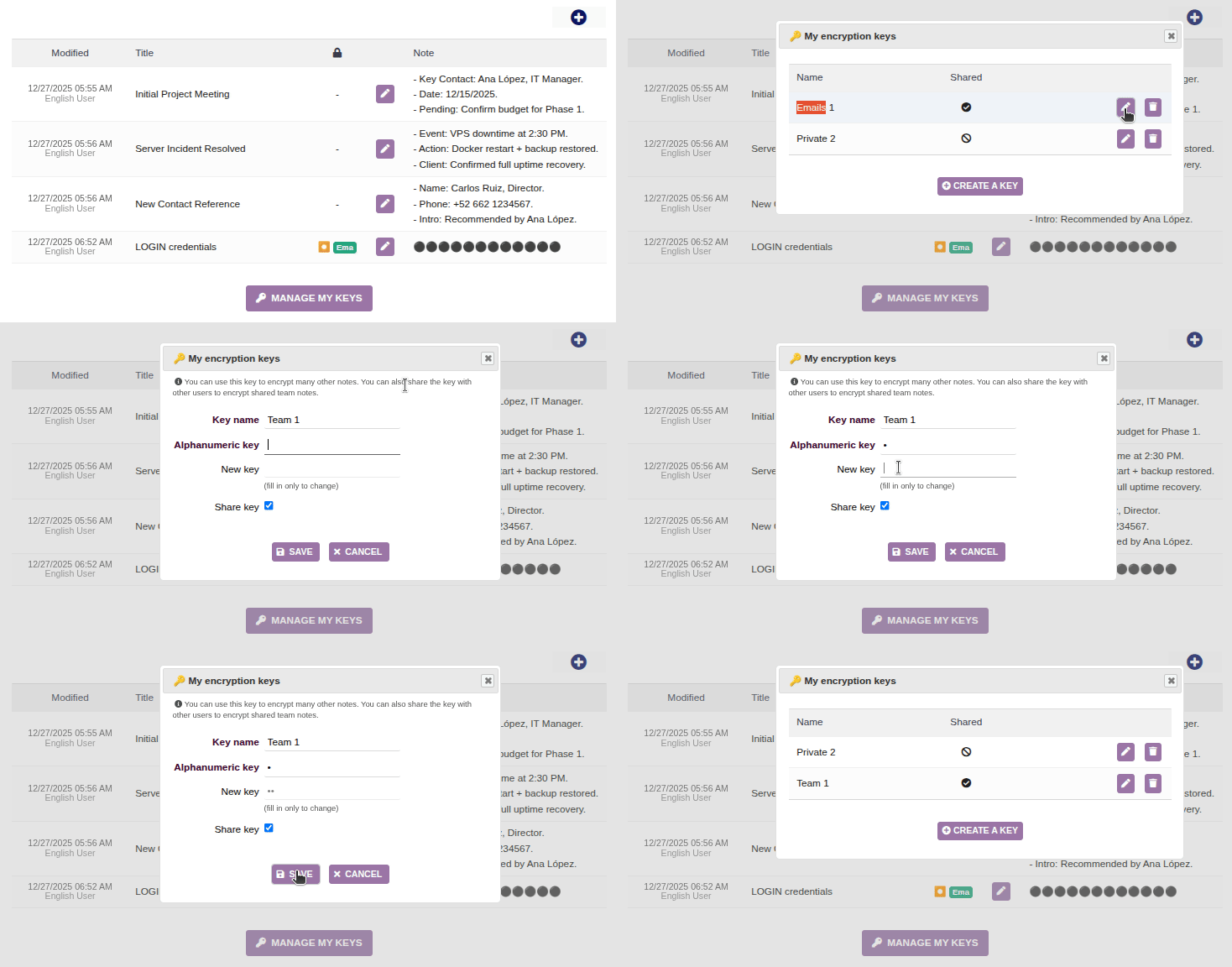
- Each user can create as many encryption keys as needed.
- Users can also create shared keys for team access.
- When using personal keys: Only the creator can decrypt notes
- When using shared keys: Any user with the key can decrypt notes.
- Each user manages their own keys:
Shared Note Considerations:
- When a user marks a key as SHARED, others can use it to encrypt notes with the same unlock key, enabling secure collaboration.
- Only the key creator can modify or delete it (!!).
Technical Considerations
Secure Key Storage
- Encryption keys are 256-bit (64 hex characters), generated using PHP’s `openssl_random_pseudo_bytes()` with a unique salt. Example:
e3b0c44298fc1c149afbf4c8996fb92427ae41e4649b934ca495991b7852b855 - The key is stored in the database encrypted with AES-256, using the user’s unlock key (which is typically weak). To strengthen it, the system applies PBKDF2 with 600,000 iterations and a unique salt—double the OWASP 2025 recommendation (!!).
- Notes are encrypted using the 256-bit key also via AES-256.
⚠️ Performance Note: Encryption/decryption may add ~0.5 seconds (depends on server power).
Encryption Recommendations
While PBKDF2 hardening makes brute-force attacks difficult, we recommend:
- Avoid reusing keys—use different keys for different purposes to limit exposure.
- Use strong unlock keys—avoid short or dictionary-based passwords. Instead, use mixed case, numbers, and symbols. If using words, make them a long, nonsensical phrase.
Change Tracking
Currently, only the **last modification time and user** are logged. A full **change log** may be added in the future if demand exists.
Multi-Company Compatibility
- Notes added to a company’s elements are **only visible within that company**.
- Keys created by a user are **only accessible when working in that company**.
Installation Process
Follow the standard Dolibarr module installation steps:
- Go to Configuration → Modules.
- Navigate to the "Install External Module" tab and upload the module’s ZIP file.
- Return to the "Available Modules" tab.
- Filter by Origin: "External - IMASDEWEB".
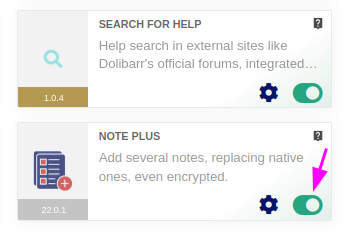
- Activate the module.
Appendix: Quick Markdown Formatting Guide
Imagine you're writing a text message or a note, and you want to highlight some words to make them appear bold, italic, or as a large title. Normally, in programs like Word, you click on buttons to apply those styles.
Markdown is like a keyboard shortcut for styling text, but using simple symbols instead of buttons. It was created so that anyone can format text quickly and readably, even if they're just writing in a simple notepad.
Many platforms recognize it automatically: WhatsApp, Telegram, Discord, forums, blogs (like Medium), and even note-taking apps like Obsidian or Notion.
Headers
Use # symbols to create headers (1-6 levels):
# H1 - Main Title
## H2 - Section
### H3 - Subsection
Text Formatting
- Bold text:
**bold**or__bold__ - Italic text:
*italic*or_italic_ - Bold and italic:
***text*** Strikethrough:~~strikethrough~~Inline code:`code`
Links
Create hyperlinks with [text](URL):
[OpenAI](https://openai.com)
Result: OpenAI
Images
Insert images using :


Quotes
Single-level quote using
>Nested quote using
>>Continuation...
Using this:
> Single-level quote using `>`
>> Nested quote using `>>`
>
> Continuation...
Lists
Unordered Lists
Use -, *, or + for bullets:
- First item
- Second item
 - Nested item (indented with TAB character)
 - Another nested item
- Third item
Ordered Lists
Use numbers followed by periods:
1. First item
2. Second item
3. Third item
Code Blocks
Inline Code
Use single backticks: `code here`
Code Blocks
Use triple backticks with optional language identifier:
```php
$variable = "Hello World";
echo $variable;
```
Horizontal Rules
Create dividers with ---, ***, or ___:
Tables
Create tables using pipes | and dashes -:
| Column 1 | Column 2 | Column 3 |
|----------|----------|----------|
| Data 1 | Data 2 | Data 3 |
| Data 4 | Data 5 | Data 6 |
Result:
| Column 1 | Column 2 | Column 3 |
|---|---|---|
| Data 1 | Data 2 | Data 3 |
| Data 4 | Data 5 | Data 6 |
Task Lists
Create checkboxes with - [ ] or - [x]:
[x] Completed task
[ ] Pending task
[ ] Another pending task
Result:
Completed task
Pending task
Another pending task
Escaping Special Characters
If you need to include characters in your text that Markdown uses for formatting, you can "escape" them by placing a backslash \ as a prefix:
| Character | Name | Example | Result |
|---|---|---|---|
\\ |
backslash | \\ |
\ |
\* |
asterisk | \*text\* |
*text* |
\_ |
underscore | \_text\_ |
_text_ |
\{ \} |
curly braces | \{code\} |
{code} |
\[ \] |
square brackets | \[text\] |
[text] |
\< \> |
less than/greater than | \ |
\ |
\( \) |
parentheses | \(note\) |
(note) |
\# |
hash/pound | \# not a title |
# not a title |
\+ |
plus | \+ item |
+ item |
\- |
hyphen | \- not a list |
- not a list |
\. |
period | 1\. not a list |
1. not a list |
\! |
exclamation | \!\[not an image\] |
![not an image] |
\| |
pipe | \| not a table \| |
| not a table | |
Common Use Cases
Without escaping: *italic* **bold** `code`
Escaped: \*asterisks\* \*\*stars\*\* \`backticks\`
Result:
- Without escaping: italic bold
code - Escaped: *asterisks* **stars** `backticks`
Note: Markdown rendering may vary depending on the platform (GitHub, GitLab, Reddit, Dolibarr, etc.).
Añada su comentario: